AI Chat in Kinetics Neo
Applies to: Kinetics Neo 4.1 and later.
AI Chat is the AI assistant of Kinetics Neo. You ask a question in plain language and get an answer together with the sources it is based on. AI Chat runs in its own window. An overview of the AI features is given in the AI in Kinetics Neo: General Remarks.
Check requirements to use AI Chat in Kinetics Neo.
How your data is handled is described in AI Privacy
Starting AI Chat
The AI Chat button on the Main Ribbon Tab Homein Kinetics Neo shows whether AI Chat is available. AI Chat needs an active Support Subscription and a connection to the AI service. The icon on the button shows whether both are available; see more details in Ribbon Toolbar: Home Tab, group AI . Short summary of the status of the AI Chat button:

|
AI Chat is ready. The AI service can be reached and your Support Subscription is active |

|
No valid Support Subscription. The AI service can be reached, but your Support Subscription has expired, or could not be loaded |

|
AI service not reachable. Kinetics Neo cannot connect to the AI service, for example because of a missing Internet connection or a firewall. |
AI Chat Client
When all necessary requirements are available, then AI Chat Client app with it's own window will started. The window consists of:
-
the Main Ribbon at the top,
-
the panel Chat History on the left,
-
the panel AI Response with the conversation on the right,
-
the status bar at the bottom.
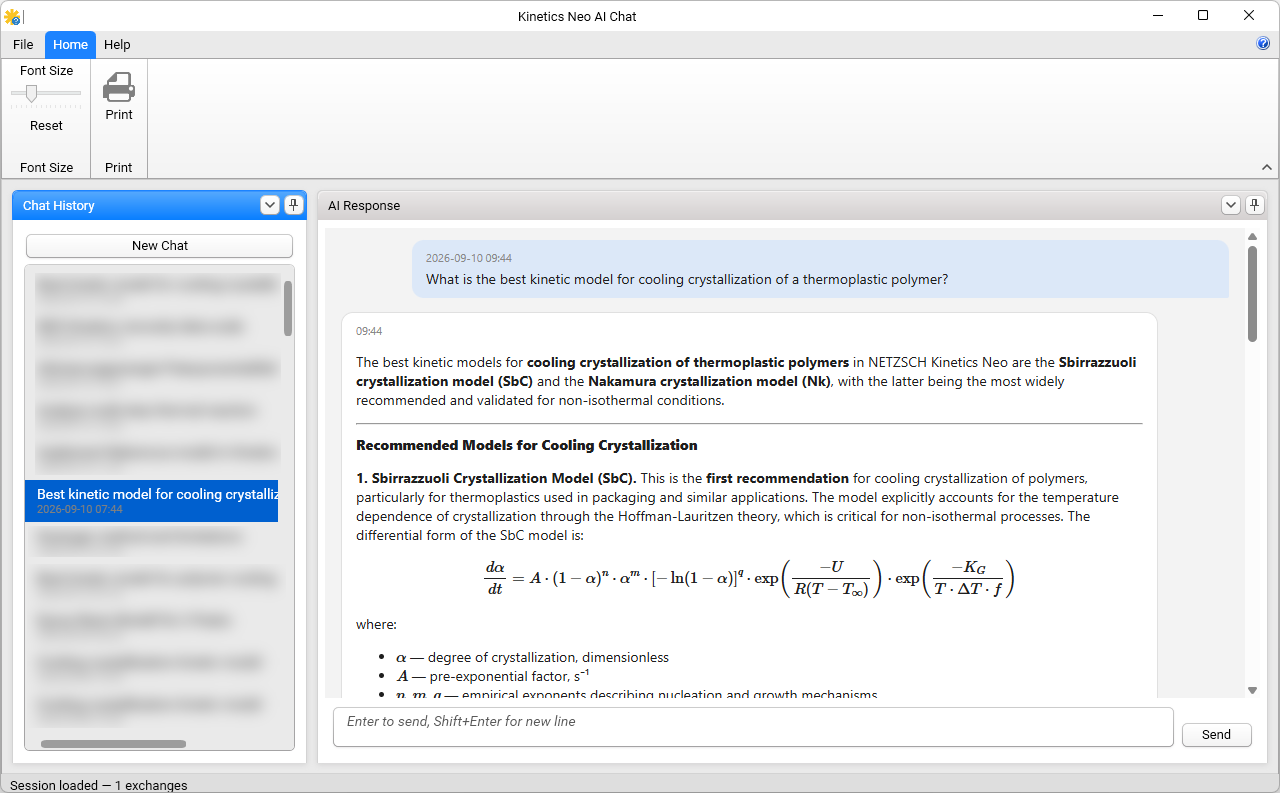
Top Main Ribbon
Home Tab
Font Size: Move the slider to make the text of the conversation smaller or larger. Reset restores the default size
Print: prints the current conversation. In the Windows print dialog you can select a printer, or a PDF printer such as Microsoft Print to PDF, to save the conversation as a PDF file. Print is also available in the File menu.
Help Tab
About shows information about AI Chat (see “About” below). Suggest a Feature and My Feedback open the Kinetics Neo website in your web browser, where you can send a suggestion or your feedback.
Help button (question mark at the top right of the window): opens the help for AI Chat, [/AI/AI.htm].
File menu: Print, About and Exit. Exit closes AI Chat; Kinetics Neo stays open.
Asking a Question
-
Click on New Chat button on the top of the left panel Chat History.
-
Click the input box at the bottom of the window and type your question. Press Enter or click Send to send it. Press Shift+Enter to start a new line.
-
Before your question is sent, AI Chat checks the connection to the AI service. If the service cannot be reached, AI Chat shows “The AI service is currently offline. Your message was not sent. Please check your Internet connection and try again in a moment.” See Ribbon Toolbar: Home Tab, group AI for possible causes.
-
While the answer is being written, it appears step by step. Click Stop at the right end of the status bar to cancel it.
-
When the answer is complete, the sources are listed below it.
Tip: Ask specific questions and name the method or model you are working with. The more precise the question, the more precise the answer.
The status bar at the bottom of the window shows what AI Chat is doing:
| Ready | AI Chat is waiting for your question. |
| Checking connection… | AI Chat checks the connection to the AI service before it sends your question. |
| Streaming... | The answer is being written. The button Stop is visible |
| Sources: n | The answer is complete and is based on n sources |
| Session loaded — n exchanges | A chat from the chat history was opened |
| Request cancelled | You clicked Stop |
| Error: ... | The request failed. The reason is also shown in a message. Try again later. If the problem persists, contact Kinetics Neo support. |
AI Response
The panel AI Response shows the conversation. Your questions are shown on a blue background with date and time. The answers of the AI follow below them, with the time.
-
Answers can contain formatted text, headings, lists and mathematical formulas. Use the scroll bar or the mouse wheel to scroll through a long conversation, and the font size setting in the ribbon to enlarge the text.
-
Below each answer, the list Sources shows what the answer is based on. The sources are numbered [1], [2], … and show the title, and where available the authors, year, journal and links to the publication (DOI) or to a video. The numbers in the text of the answer refer to these sources. Sources about the discontinued NETZSCH Thermokinetics are marked Legacy software. Links open in your web browser.
-
Below an answer, AI Chat can suggest follow-up topics. Click a topic to ask it as your next question.
-
To copy text, select it in the conversation, right-click and select Copy.
Answers are generated by AI and can contain mistakes. Check important information against the sources.
Where the Chat History Is Stored
Your chats are saved on your computer only, in the encrypted file %LocalAppData%\KineticsNeo\history.enc. The file is encrypted with AES-256, and the key is protected by Windows for your user account. Therefore only you can read the file, and only on this computer.
If AI Chat cannot read the file completely, it shows the message Chat History Unavailable or Chat History Partially Recovered. Typical causes are that your Windows domain password was reset while the computer was offline, or that the file was copied from another user account or computer, or that the file is damaged.
AI Chat saves a copy of the unreadable file in the same folder (history.<date>-<time>.enc.bak) and continues with the chats it could recover, or with a new, empty chat history. If the file cannot be decrypted, connect the computer to the domain network and sign in to Windows again. If you need the old chats recovered, contact your IT support and give them the saved copy.